Search using either coordinates you type, or a well list with a .txt, or .wel, extension.
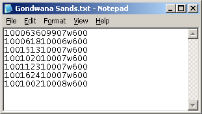
For Canadian wells, the format for well lists must be UWIs only with no other information, one UWI per row, and full 16-character CPA format with or without delimiters.
Type UWIs or APIs directly into the list box, paste up to 2,000 in the list box, or import a well list of any size using the import function.
Depending on the survey system, the following coordinates are mandatory:
DLS - Township, range, and meridian.
NTS - Sheet, segment, and block.
Geodetic - Decimal degrees latitude, decimal degrees longitude.
The file format of the well list must be simple ASCII or ANSI format. Here's an example of a well list of Canadian UWIs saved in ANSI format using Notepad.
To search by coordinates
1. In the search area in the top-left of the window, select the coordinate system. For example, the DLS coordinate system is selected below.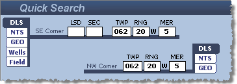
2. Type the geographic coordinates.
SE and NW coordinates can be specified using different coordinate systems for cross-border regions.
For viewing preference, you can swap the display location of the NW and SE corners. From the Tools ( ) menu, select Swap NW and SE Entries.
To add additional well criteria including well parameters (TD, Spud Date, and more) click the Advanced Search checkbox and select the Wells tab.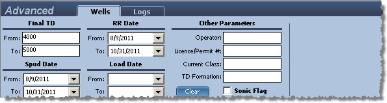
To add additional log criteria (curve types and raster logs) click the Advanced Search checkbox and select the Logs tab. If you add criteria to both the Wells tab and the Logs tab, LOGarc applies both during your search.
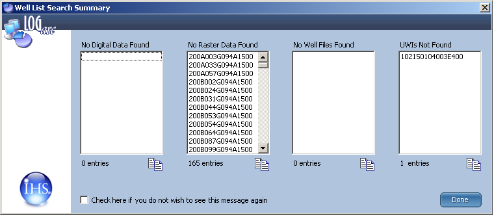
For well list searches, to view a list of UWIs that could not be found, from the Tools () menu, select Show Well List Search Summary.
3. Click Search.
If you enabled the Well List Summary dialog box, it appears showing the data types (digital, raster, well files, and UWIs) for which UWIs you specified could not be found. Click  to save results of a pane to your Windows clipboard so that you can paste it into a text editor or into an email to IHS Customer Care.
To disable the advanced search criteria, clear the Advanced Search checkbox. You do not need to clear all of the options selected above in the Wells and Logs tabs. 
| Searching by Fields | About the Search Results Grid |
| Saving Projects |